You can modify the WiFi password, Network Name (SSID), and default router settings on the Mercusys web management page at http://mwlogin.net or 192.168.1.1.
Mwlogin.net Sign in
Login to 192.168.1.1
How can I access my Mercusys router?
- In the address box of a browser, put either 192.168.1.1 or http://mwlogin.net.
- To log in, enter your password.
- The Mercusys router interface will be open and you will be logged in.
Models MW301R, MW305R, MW325R, MR50G, MR70X, MR30G, and AC10 are all affected by this.
For other models, click Login after entering admin as the username and password.
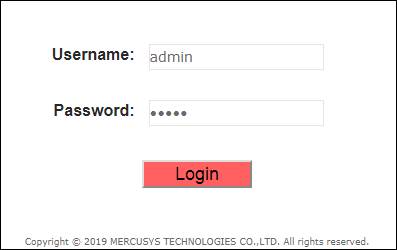
To access the web-based management page, you will need to create a login password if this is your first time logging in. You can return the router to its original factory settings if you can’t remember your login password. After turning on the router, hold down the Reset button until the LEDs illuminate.
How can I modify my Mercusys WiFi SSID and password?
- Access the Mercusys router management page by logging in.
- Click on Wireless from the Basic options on the home screen.
- In the SSID area, type the network name.
- In the Password area, type the WiFi password.
- To make the changes take effect, click the Save button.
You will need to configure the 2.4GHz and 5GHz network bands independently if you have a dual-band router. The procedures work for all models, including MW305R, MW300D, and MW325R.